
Set up your beta account
Before you start
Section titled “Before you start”Before you start:
- Get your Barge invitation email and a browser.
- Use a disposable test repository where you have GitHub write access.
- Get a supported provider credential with available credit or plan access.
- Ask an organization owner to approve the GitHub App if needed.
- Read costs and limits.
Browser cloud start needs no local CLI, Bun installation, or Docker. A local checkout alone does not give the cloud worker access to private registries or services on your laptop. It does not include ignored files.
1. Redeem your invitation
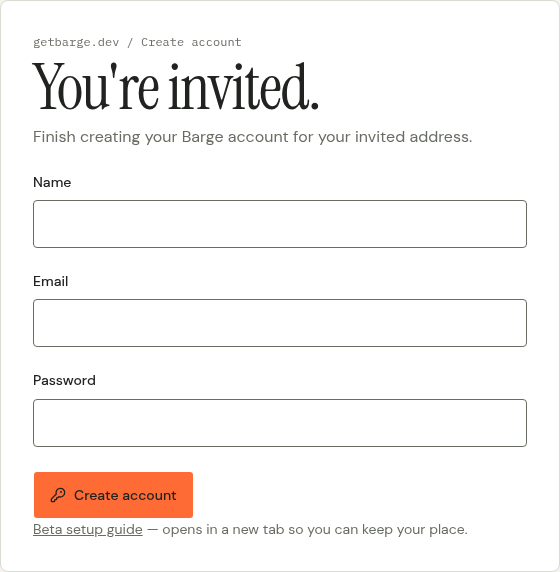
Section titled “1. Redeem your invitation”Open the original link from your invitation email. On You’re invited, enter your name, the invited email address, and a password of at least eight characters; select Create account. Use the exact invited address rather than a different alias. The invitation is redeemed when you submit the form.
Barge removes the invitation fragment from the address bar. Opening the guide in a separate tab keeps the signup form open. If you reload and see No invitation found, reopen the original email link. Never copy the invitation into a bug report.
Success check: account creation takes you into first-run setup. Already registered? Sign in instead. See invitation troubleshooting for expired or rejected links.
2. Connect GitHub and select a repository
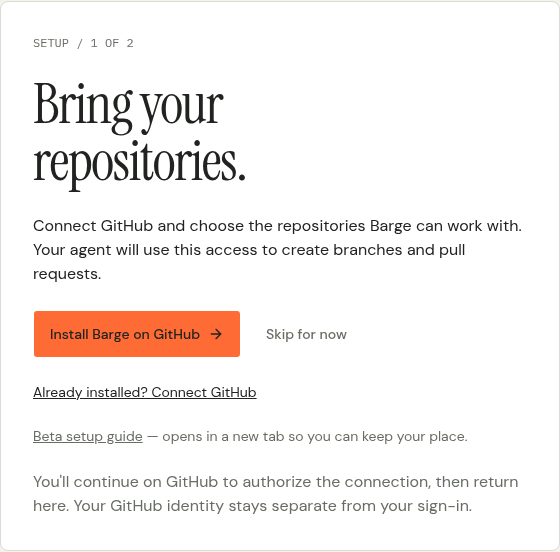
Section titled “2. Connect GitHub and select a repository”Select Install Barge on GitHub or Already installed. Authorize your GitHub account. Install the Barge GitHub App on the account or organization that owns your test repository. Prefer Only select repositories and select only your test repository.
Review GitHub’s permission screen before you approve access. Barge requests write access to Contents, Pull requests, and Workflows. It requests read access to Checks, Commit statuses, Administration, and Metadata. These permissions let Barge restore source, push branches, create pull requests, and read check status. Do not approve access you are not authorized to grant. Do not create your own App. Do not paste a personal GitHub token or provide an App private key.
GitHub sign-in and App installation are separate actions. Ask an organization owner to approve installation if GitHub requests it. You need current write access to the repository. Another member’s installation does not give you access.
Success check: return to Barge and see GitHub connected and the provider selection step. Later, confirm the test repository appears in New work. If it does not, read GitHub permissions.
3. Connect an agent provider
Section titled “3. Connect an agent provider”Choose the provider you intend to use. In first-run setup, use its API key or Subscription option when offered. Additional providers and stage choices are available in Settings after onboarding.
| Agent | Credential paths implemented in Barge |
|---|---|
| Codex / OpenAI | OpenAI API key, or the ChatGPT device-login connection offered by the app |
| Claude Code / Anthropic | Anthropic API key, or a Claude setup token via the subscription connection |
| Grok Build / xAI | xAI API key, or the app’s Grok device-login connection |
| OpenCode / OpenRouter | OpenRouter API key in Settings |
| Devin CLI | The plan credential connection in Settings; no API-key or device-login path |
This table describes Barge’s connection methods, not a promise that every subscription tier or model is eligible. Use the credential form and connection test shown by the current app; provider availability, limits, and charges still apply. Do not buy a plan solely on the assumption that it will work with Barge.
For an API key, paste it only into the provider’s credential field. During first-run setup, select Save and test connection. In Settings, select Save, then Test connection.
For a device login, open the verification URL shown by Barge. Confirm the provider account. Approve the request on the provider’s site. Keep the tab open until Barge confirms the connection.
For a token or credential document, follow the provider card’s instructions. Treat the full value as a password.
Saved provider secrets are encrypted in Barge’s storage. Barge sends them to the worker to run the agent. Arbitrary repository code can still be unsafe. Never put credentials in a task prompt, repository, screenshot, chat, or issue.
Success check: the ready screen shows GitHub and your agent. An API-key connection test must pass. Barge cannot test a Claude setup token until a task runs. A saved token alone does not confirm provider access.
Select Start your first session. If the connection test fails, edit the connection. The test does not start a worker. Continue with your first task.